
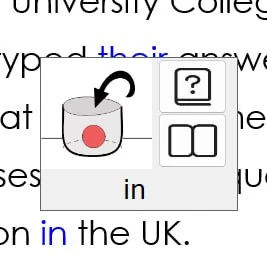
The Word Information popup is one of the most significant enhancements in Sensory Readable v3. Hold Ctrl+Shift and hover the mouse over any word in any Windows application — Readable speaks the word aloud and opens a popup showing its definition and, where available, a pictogram of the word.
The Word Information popup works in every Windows application — even when the word is in an image, a locked PDF, or otherwise inaccessible. The right method is picked automatically without you needing to think about it.
How to use the Word Information popup
- Hold down Ctrl+Shift
- Move the mouse over any word in any application
- Readable speaks the word and opens the Word Information popup
- Read the definition and look at the pictogram
- Release Ctrl+Shift or click outside the popup to close it
What the popup shows
- The word, spoken aloud
- The moment the popup opens, Readable speaks the word using the current TTS voice. Useful for confirming pronunciation or for users who recognise words by sound more readily than by sight.
- A pictogram
- For words that have a clear visual referent, the popup shows a pictogram — an illustration that helps connect the written word to its meaning. This is particularly helpful for visual learners and for anyone learning English.
- Definition
- The full dictionary definition from Readable's offline dictionary (147,000+ words). For words with multiple meanings, all meanings are shown.
- Homophone pictogram
- If the word is a homophone (sounds like one or more other words with different spellings), the popup shows a pictogram of the word if available — helpful for visually distinguishing words like there / their / they're.
- Thesaurus link
- For most words, the popup includes a link to open the full thesaurus entry showing synonyms grouped by meaning.
Where it works
The Word Information popup works in essentially any Windows application, regardless of whether the source is plain text, secure or protected text, or an image of text. Readable picks the right method automatically — you don't need to know how.
- Microsoft Word, Outlook, Edge, and other Microsoft applications
- Chrome, Firefox, and other browsers
- Adobe Acrobat and other PDF readers — including locked and secure PDFs
- Images, screenshots, infographics — anything with visible text
- Video subtitles and on-screen captions
- Remote desktop windows (RDP, Citrix, VirtualBox, VMware)
- Legacy applications and custom Windows software
Turning the popup on or off
Turning the pictograms off
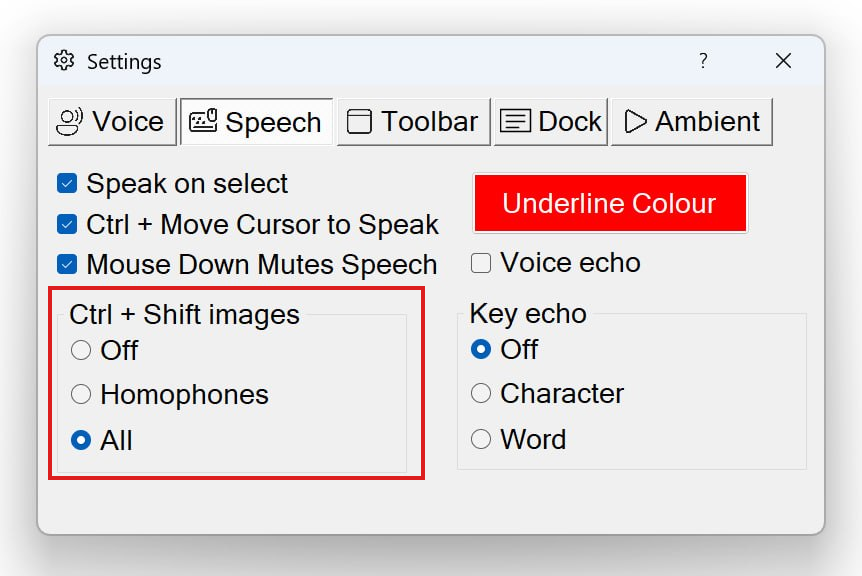
The pictograms shown in the popup are controlled from the Speech tab in Readable Settings — see the Ctrl + Shift images group highlighted earlier on this page. The three options are:
- Off — no pictograms ever
- Homophones — pictograms only for words that have known homophones
- All — pictograms shown whenever one is available
Turning off the Ctrl+Shift hover entirely
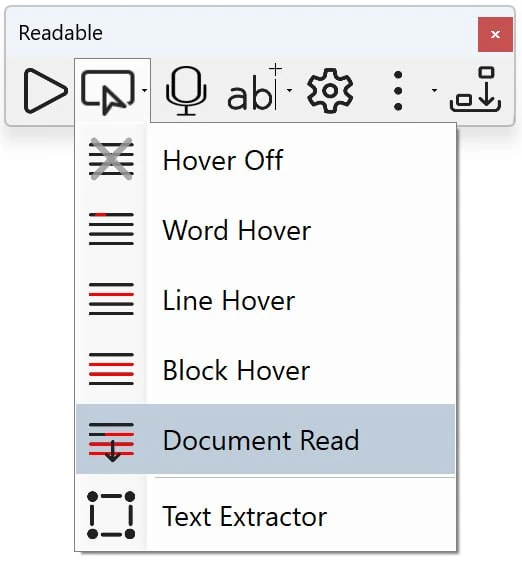
The Ctrl+Shift hover popup is part of Readable's hover features. To disable it together with all other hover-to-speak actions, select Hover Off from the Hover dropdown menu on the Readable toolbar.
Combining with other features
- 6-button mouse — by default, side button 2 acts like Ctrl+Shift+hover. See Speak Text with 6-button mouse.
- Hover Read Modes — Ctrl+hover (without Shift) reads passages of text; Ctrl+Shift+hover reads single words and shows the popup. The two are complementary.
- Word Lookup, Thesaurus, Homophones — these have their own buttons on the Readable toolbar when Microsoft Word is active (see Text Check & Lookup in MS Word), but the Word Information popup is faster because it combines all three sources in one popup and works in any application.