
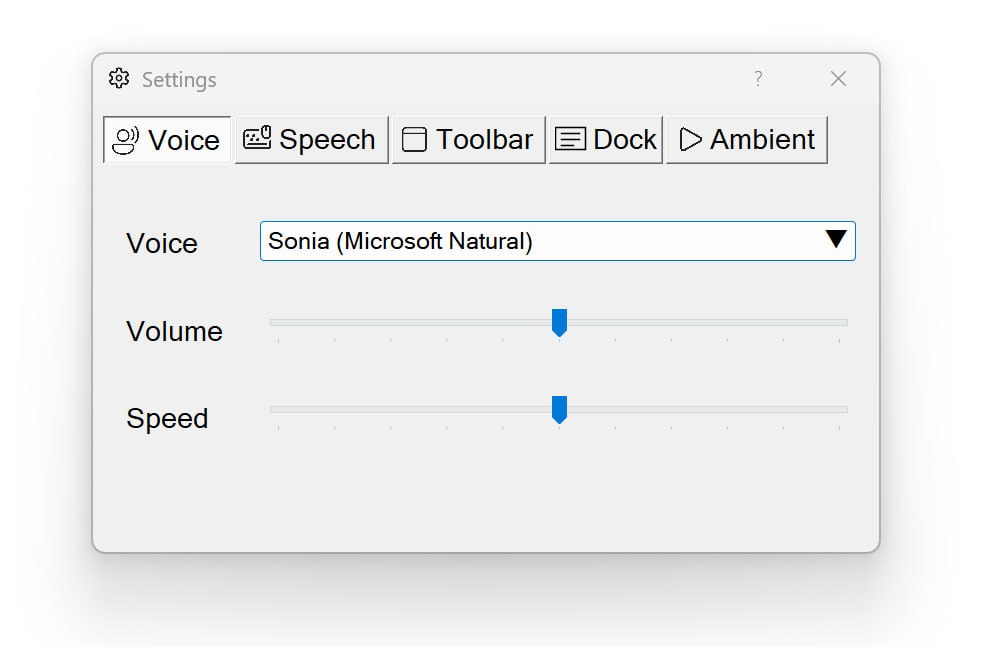
Sensory Readable's speech settings control how Readable sounds and behaves when speaking. This section covers voice selection, speed, volume, and the supporting features that work alongside speech — Key Echo, Voice Echo, and Click Stops Speech.
Topics in this section
Setting up your speech
The two most important settings for everyday use are voice and speed. Most users find a comfortable combination after a few minutes of trying:
- Pick a voice whose tone you find easy to listen to
- Set a speed that matches your reading pace
- Optionally enable Key Echo, Voice Echo or Click Stops Speech based on your needs
Voices included
Sensory Readable v3 includes a large range of human-quality installed voices that work offline (without an internet connection) — this includes the existing Natural Voices (Sonia, Ryan and more) plus an expanding range of custom-built voices. The exact voice list varies by Readable version and region — your build may include additional or different voices appropriate to your locale.
Video help
A look at the voices included with Sensory Readable v3. The videos only contact Vimeo once you press play.