
Windows 11 Prediction is the default word-prediction system in Sensory Readable v3. It uses Microsoft's built-in Windows Text Suggestions — integrated at the operating-system level and available in every Windows application that accepts input from a physical keyboard. Readable links to it, adds a quick on/off toggle to the toolbar, and lets you hear suggestions read aloud by hovering over them with the Ctrl key held.
Video help
A short walkthrough of word prediction in Sensory Readable. The video only contacts YouTube once you press play.
How Windows 11 Prediction works
As you type, Windows 11 displays a small suggestion bar above (or near) the cursor showing one or more suggested words. To accept a suggestion:
- Press Tab to accept the first suggestion
- Use the up/down arrow keys to move between multiple suggestions, then Tab or Enter to accept
- Click a suggestion with the mouse
- Just keep typing to ignore the suggestion
Suggestions update in real time as you type each character. The prediction is based on what you've typed so far, the context of the surrounding sentence, and Windows' learning of your typing patterns over time.
Hearing the suggestions read aloud
This is Readable's added value on top of standard Windows prediction. As the suggestion bar appears with one or more suggested words, hold Ctrl and move the mouse over the suggestions — Readable will speak each one aloud as the pointer crosses it. Useful when you can't tell at a glance which suggestion fits, or for users with reading differences who benefit from hearing the option before committing to it.
Where it works
Windows 11 Prediction works in any Windows application that accepts text input from a physical keyboard — Microsoft Word, Outlook, Edge, Chrome, Notepad, Sticky Notes, Teams, and so on. The integration is at the OS level, so behaviour is consistent across applications.
Personalisation and learning
Windows 11 personalises predictions based on your typing patterns over time. Common phrases, your name, frequently-used names, and personal vocabulary become more likely suggestions as you use it. This learning is private to your Windows user account and stored locally.
Strengths and limitations
Strengths
- Works everywhere — no need to think about which app you're in
- Broad vocabulary — handles general writing well
- Personalised learning over time
- No setup required
Where the specialist Sensory Prediction does better
- Phonetic prediction — suggesting words that sound like your typed letters even when the spelling is far off
- Multiple configurable prediction modes for different writing tasks
- More aggressive multiple-suggestion display
If any of those points sound important for your writing, switch to Sensory Prediction when writing in the Readable Editor.
Turning Windows 11 Prediction on or off
From the Readable toolbar (recommended)
The fastest way is the Readable toolbar's word-prediction button — clicking it opens a small menu with two toggles: Show Predictions and AutoCorrect.
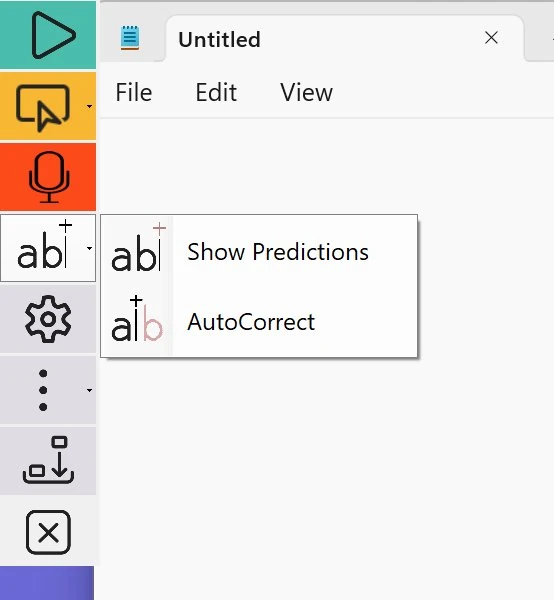
Click Show Predictions to switch the suggestion bar on or off. The change takes effect immediately — no restart required.
From Windows Settings (system-wide)
For the deeper Windows-level toggle:
- Open Windows Settings (Windows+I)
- Go to Time & Language → Typing
- Find Show text suggestions when typing on the physical keyboard
- Toggle on or off