
Speech Dictation — also called Voice Typing — lets you write by speaking instead of typing. Microsoft Voice Access and Dragon Professional are powerful speech-dictation tools: they let you put words on the page without touching the keyboard, which sidesteps spelling difficulties entirely. They aren't infallible, though — speech recognition can occasionally mishear a word or slip up on grammar. With Sensory Readable you can listen back to your dictated text to make sure it captured exactly what you meant. Readable gives you one-click access to Windows' built-in speech recognition straight from the toolbar.
Speech Dictation is invaluable for users with motor difficulties, repetitive strain injury, dyslexia (where the speed of speech bypasses spelling difficulties), or anyone who wants to write fluently without keyboard fatigue.
Video help
A walkthrough of speech dictation with Readable and Windows Voice Access. The video only contacts Vimeo once you press play.
How to start Speech Dictation
The Voice Typing button is the microphone icon on the Readable toolbar. Clicking it launches Microsoft Windows Voice Access — a system-level voice toolbar appears at the top of the screen, ready to dictate into whichever application has the cursor.

To start dictating:
- Click into the document or text field where you want the typed words to appear
- Click the Voice Typing button on the Readable toolbar
- Speak naturally — words appear in the text as you speak
- Use voice commands for punctuation: "comma", "full stop", "question mark", "new line", "new paragraph"
- Click the Voice Typing button again to stop, or stay silent for several seconds
Voice commands
Voice Typing recognises a range of voice commands for punctuation, capitalisation and basic editing. Common commands:
- Punctuation
- "comma", "full stop", "period", "question mark", "exclamation mark", "colon", "semicolon", "open quote", "close quote", "open bracket", "close bracket", "hyphen", "dash"
- Spacing
- "new line" (line break), "new paragraph" (paragraph break)
- Capitalisation
- "capital" before a word ("capital tuesday"), or sentence-start capitalisation is automatic
- Editing
- "delete that" (removes the last word/sentence), "scratch that" (synonym), "undo" (Ctrl+Z equivalent)
- Stop dictation
- "stop dictating", "stop listening", or click the Voice Typing button again
The exact command list depends on your Windows language and version — see the Windows speech settings for the full list.
Where Speech Dictation works
Speech Dictation works in any Windows application that accepts text input — word processors, email, chat, browsers, the Readable Editor and so on. The dictated text appears wherever the cursor currently is.
Checking your dictated text
Because speech recognition occasionally mishears a word, it's worth checking what was transcribed before you move on — and Readable lets you do that by ear rather than by eye, which helps if proofreading on screen is the slowest part of dictating for you. There are two ways:
- Use any of Readable's reading methods — press Play, hover to read, or select the text and have it spoken — to hear back what was typed. See Reading Text.
- Turn on Voice Echo (Settings → Speech → Voice echo). With it on, each phrase is read back automatically as soon as the dictation engine settles on it — no extra step needed.
Improving accuracy
Speech recognition accuracy depends on several factors. Voice Access also offers settings — accessed via the gear icon on its toolbar — for microphone selection, recognition language, custom vocabulary, and wait time before acting on a command.
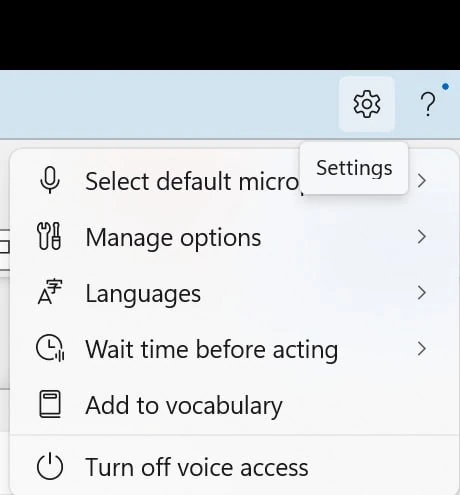
Factors that affect accuracy:
- Microphone quality. A dedicated USB microphone or headset microphone will be substantially more accurate than a laptop's built-in microphone. Even a budget USB headset can transform results.
- Background noise. Quiet environments give better accuracy. If background noise is unavoidable, a noise-cancelling microphone helps significantly.
- Speaking style. Speak at a normal conversational pace, clearly but not artificially slowly. Trying too hard to enunciate can paradoxically reduce accuracy.
- Microphone setup. Position the microphone consistently — about 5–10cm from your mouth for headsets, slightly to the side to avoid breath noise.
Speech Dictation with other Readable features
Voice Typing pairs naturally with several other Readable features:
- Voice Echo — completed sentences are read back so you can verify the transcription matches what you intended to say. Catches transcription errors immediately.
- Word Prediction and Autocorrect — combine voice typing for the bulk of writing with prediction for filling in subsequent words and autocorrect for fixing transcription glitches.
- Key Echo — generally not used at the same time as Voice Typing (you wouldn't normally hear individual character echoes for dictated text), but can be enabled if useful.
Privacy and data
Windows Voice Typing processes your speech using Microsoft's speech recognition. Depending on your Windows settings, this may happen entirely on your device, or may send audio to Microsoft's cloud for processing. Check Windows Settings → Privacy & Security → Speech to see and change the current behaviour.
For environments where audio cannot leave the device (secure environments, certain workplaces), use the on-device speech recognition option in Windows.