
Hover Read is one of the most novel and productive features of Sensory Readable. Hold the Ctrl key and hover the mouse over text to have Readable read it aloud, with each word underlined as it is spoken. On a fresh install Hover is set to Word — one word at a time as you move the pointer.
Once speech starts, you can release the Ctrl key — Readable continues reading. To stop speech at any time, just tap Ctrl.
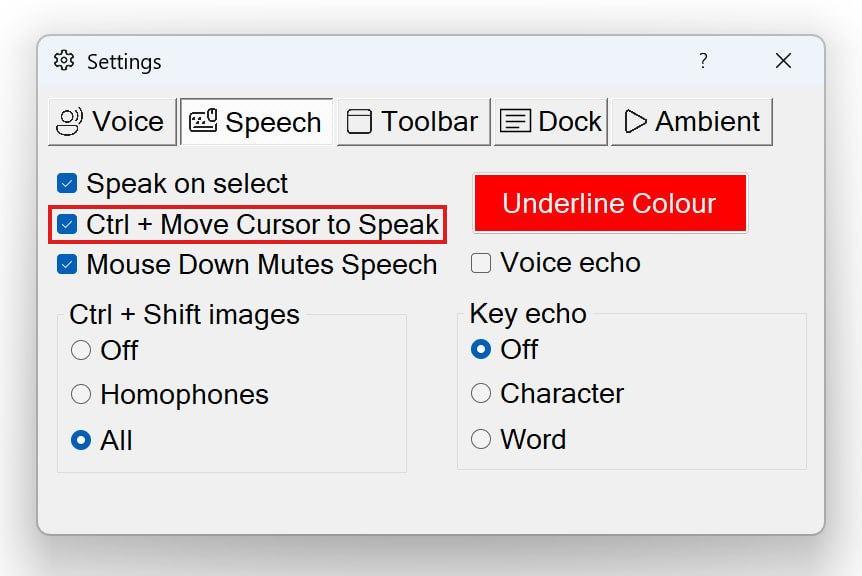
Universal app coverage: Hover works in every Windows application. Where a program provides its text directly, Readable reads that; where it doesn’t — locked PDFs, images of text, legacy apps — Readable recognises the text on screen instead. Either way there’s nothing special to do and no perceptible difference. See Why Hover Read works everywhere in Readable v3 below for how this works.
How to use Hover
- Hold down the Ctrl key
- Move the mouse over the text you want read
- Readable speaks the text under the pointer, with the current word underlined
- Release Ctrl to stop
The five hover options
Hover offers five options that control how much text is read each time you hover. Switch between the options via the dropdown arrow next to the Hover button on the toolbar.
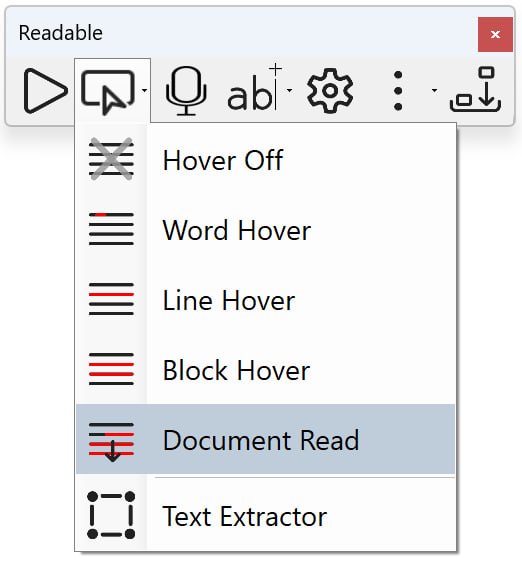
- Off
- Hover reading is disabled. Use the Play button or other methods instead.
- Word (default)
- One word at a time as you move the mouse. The current word is underlined. This is the mode Readable starts in after installation. Useful for vocabulary work and slow careful reading.
- Line
- The entire line of text under the mouse pointer. Each line is read once when you hover over it.
- Block
- The whole paragraph or block of text near the mouse pointer. Good for reading articles and longer passages.
- Document
- The entire document is read continuously, with automatic scrolling. Triggered once when you hover; continues until you release Ctrl or reach the end.
Choosing how much to read at once
Because Word is the default mode, a fresh install reads one word at a time on each hover. If you want longer passages spoken in one go, you have two equally good paths:
- Change the Hover mode. Open the Hover dropdown and pick Line, Block or Document Read. Each step up reads progressively more on a single hover: a whole line, a whole paragraph, or the entire document with auto-scroll.
- Use Ctrl+Space. A new shortcut in v3 that reads from the mouse pointer to the end of the document, regardless of which Hover mode is currently selected. See Ctrl+Space — Read to end.
Many people leave Hover in Word mode for word-by-word reading and reach for Ctrl+Space when they want a long stretch read aloud — keeping the two paths separate makes both easier to use.
Why Hover Read works everywhere in Readable v3
Hover Read works in any Windows application — modern apps, older programs, secure document viewers, locked PDFs, images, video subtitles, remote desktop sessions, virtual machine windows. You hold Ctrl, you hover, you hear the words and see them underlined — or press Ctrl+Space to Read to End from the mouse pointer to the end of the document. No setup or app-specific configuration is required.
This breadth comes from the Readable Live Layer, which draws text from two sources and blends them into one seamless experience. You never choose between them, and in most cases you can’t tell which is in use.
How it works: the two text sources in detail
1. The live text an application provides. Wherever a program makes its text available to Windows in the standard way — through the Windows 11 accessibility interfaces — Readable reads that text content directly. Most everyday reading uses this path — Microsoft Word, Outlook, Edge and Chrome web pages, and most other Windows apps.
2. Text recognised on screen. When a program does not expose its text — an image of text, a scanned or locked PDF, a legacy application, video subtitles, a remote desktop or virtual-machine window — there is no live text to read. Here Readable’s on-device recognition (Smart Dynamic OCR) reads the screen pixels instead, recognising the text in place the instant you point at it, with the word-by-word underline drawn directly on the original. Recognition runs locally on your PC; no images or text are sent to any online service.
Readable chooses the right source automatically and switches between them with no perceptible delay. The result is the same to you: hold Ctrl, hover, and the words are spoken and underlined — whatever the text content is, and however the application presents it.
Combining hover with other features
Hover read modes work alongside everything else in Readable:
- Word Underline — visible during hover speech, fully customisable
- Ctrl+Shift hover — speak the single word under the pointer plus show definition, pictogram and homophone links
- Readable Banner — when the toolbar is docked at the top, the spoken text appears in the banner as well as being underlined in place
- 6-button mouse — assign hover triggers to mouse side-buttons for hands-free control