
Sensory Readable's Microsoft Word integration adds three extra buttons to the Readable toolbar whenever Microsoft Word is the active application. These buttons give you one-click access to the most-needed font, layout, and word-checking adjustments inside your Word document.

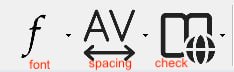
The three Word-specific buttons
- Font
- Quickly change the font style and size of your Word document. Three popular easy-to-read font styles are pre-set, alongside increase and decrease font size shortcuts.
- Spacing and Colour
- Adjust character, line, and paragraph spacing in the Word document. Set a comfortable background colour. Switch on Focus Mode to remove Word's menus and toolbars while reading or editing.
- Word Check
- Step through Word's spelling and grammar checks with speech support. Look up words in the dictionary or thesaurus. Show or hide homophones — words that sound the same but mean different things.
What changes — and what doesn't
The Font and Spacing and Colour adjustments change the document itself — the changes are saved when you save the file. The Word Check tools (spelling, lookup, thesaurus, homophones) work alongside Word's built-in tools and do not alter the document text.